FRP Bypass on Honor: MagicOS vs EMUI Methods That Actually Work (2026)
Locked out of your Honor phone by FRP? The correct bypass method depends entirely on whether your device runs modern MagicOS or older EMUI. We show you the right steps.
Being locked out of your Honor phone after a factory reset is a frustrating experience. You’ve come up against Factory Reset Protection (FRP), a security feature from Google designed to protect your data.
Finding a working Honor FRP bypass method is difficult because not all Honor phones work the same way anymore. The biggest hurdle is the difference between modern Honor devices running MagicOS and older, Huawei-era models on EMUI. Each requires a completely different approach. Using the wrong method will always fail.
We’ll help you solve this problem by first identifying your device’s operating system—the single most important step. From there, we provide specific, updated instructions for your model. So, whether you’re trying to perform an Honor Magic 6 Google account bypass or unlock an older Honor 8X, you will find an actionable solution here.
Quick Answer: Honor FRP Bypass in 2026
- If your Honor phone runs MagicOS (new models) → most no-PC methods are patched and unreliable
- If your device runs EMUI (older models) → PC-based tools are usually required
- The first step is identifying your system correctly
👉 This guide walks you through the right solution based on your device.
Table of ContentsHide
Identify Your Honor Phone: Is It MagicOS or EMUI?
Before you try any bypass procedure, you must know your phone’s operating system. A method designed for MagicOS will fail on an EMUI device, and vice versa.
This simple table will help you choose the right set of instructions.
| Identifier | Modern Honor (MagicOS) | Legacy Honor (EMUI) |
| Boot Screen | Displays a bright, colorful “HONOR” logo. | Often shows “HONOR Powered by Android” or a blue/purple EMUI logo. |
| Setup Screen | Features a modern, rounded interface. | Has a distinct, often blue-themed setup wizard. May mention a Huawei ID. |
| Model Examples | Honor Magic 6, Honor 90, Honor X9b, Honor X8a. | Honor 8X, Honor 10 Lite, Honor 9, Honor View 20. |
Once you know your software, you can proceed with confidence.
Honor FRP Bypass for MagicOS (New Models)
⚠️ Important:
On newer Honor devices (MagicOS with recent updates), most manual FRP bypass methods have very low success rates.
You can try the following methods, but they often fail on updated devices.
Method 1: The Legacy Emergency Call Check (Low Success Rate)
A once-popular method for Honor FRP bypass involved the emergency dialer. While you can try this first as it takes only seconds, be aware that this loophole has been widely patched on devices with security updates from late 2023/early 2024 onwards. It is highly unlikely to work on a modern, updated device.
1. On the “Welcome” screen, tap Emergency Call.
2. Dial the code *#*#1357946#*#*.
If a hidden menu appears, you are lucky. Follow the subsequent steps to reset your device. If nothing happens (which is the most likely outcome), do not waste any more time on this method. Proceed immediately to the next potential solution.
3. A successful entry will open a hidden menu, often called “ProjectMenu,” with a plain black background.
4. Look for an option like Settings Home or Settings and tap it.
5. Once in Settings, navigate to System & updates > Reset > Reset all settings.
6. Confirm the reset. Your phone will restart, and the Google Account verification should be gone.
Method 2: The QR Code & Wi-Fi Method (Alternative for MagicOS)
If the emergency code does nothing, this alternative uses the Wi-Fi setup screen.
1. Proceed through setup until you reach the “Connect to Wi-Fi” screen.
2. Tap the option to connect via a QR code.
3. When the camera opens, an error message with a hyperlink like “Learn More” or “Help” should eventually appear. Tap this link.
4. In the browser that opens, search for a trusted APK source and download QuickShortcutMaker.
5. Install and open the APK. Use its search function to find and launch the main phone “Settings.”
6. In Settings, go to System & updates > Reset and choose Reset all settings.
Honor FRP Bypass for EMUI (Older Models)
If your device is an older model like the Honor 8X or View 20, it runs on EMUI. For these models, a PC-based FRP bypass tool is the most effective method.
Using a PC Tool for EMUI FRP Bypass
1. Install the Right Drivers: Search online for “HiSuite by Huawei.” Download and install it from the official Huawei consumer website (link opens in new tab). HiSuite includes all necessary drivers.
2. Download a Trusted FRP Tool: Search for “Huawei Fastboot Tool.” Look for download links on reputable developer communities like XDA Forums (link opens in new tab).
3. Boot Your Phone into Fastboot Mode:
- Power your Honor phone off completely.
- Press and hold the Volume Down button.
- While holding the button, connect the phone to your computer with a USB cable. The screen will display simple text, indicating it is in Fastboot mode.
4. Run the Unlock Tool: Open the FRP unlock tool on your PC. It should detect your device.
5. Execute the FRP Reset: Click the button labeled “Erase FRP” or “Reset FRP.”
6. After the tool shows a “Success” message, reboot your device.

HuaWei FRP Bypass Tool
Why Most FRP Methods Fail Today
If a method doesn’t work, it’s not your mistake.
It usually means:
- Your device has a new security patch
- The loophole used by that method has been fixed
In reality, many “free FRP bypass” guides online are outdated. Repeating them often leads nowhere on newer devices.
Best Alternative When Free Methods Don’t Work
If you’ve tried everything and failed, your device is likely protected by newer security updates. In this case, a PC-based solution is the most reliable option.
A PC-Based FRP Solution That Works Across Honor Models
Tools like DroidKit are designed to handle:
- MagicOS devices
- EMUI devices
- Latest security patches
How to Use DroidKit for Honor FRP Bypass
1. Download and install DroidKit on your computer.
2. Choose FRP Bypass and connect your Honor phone.
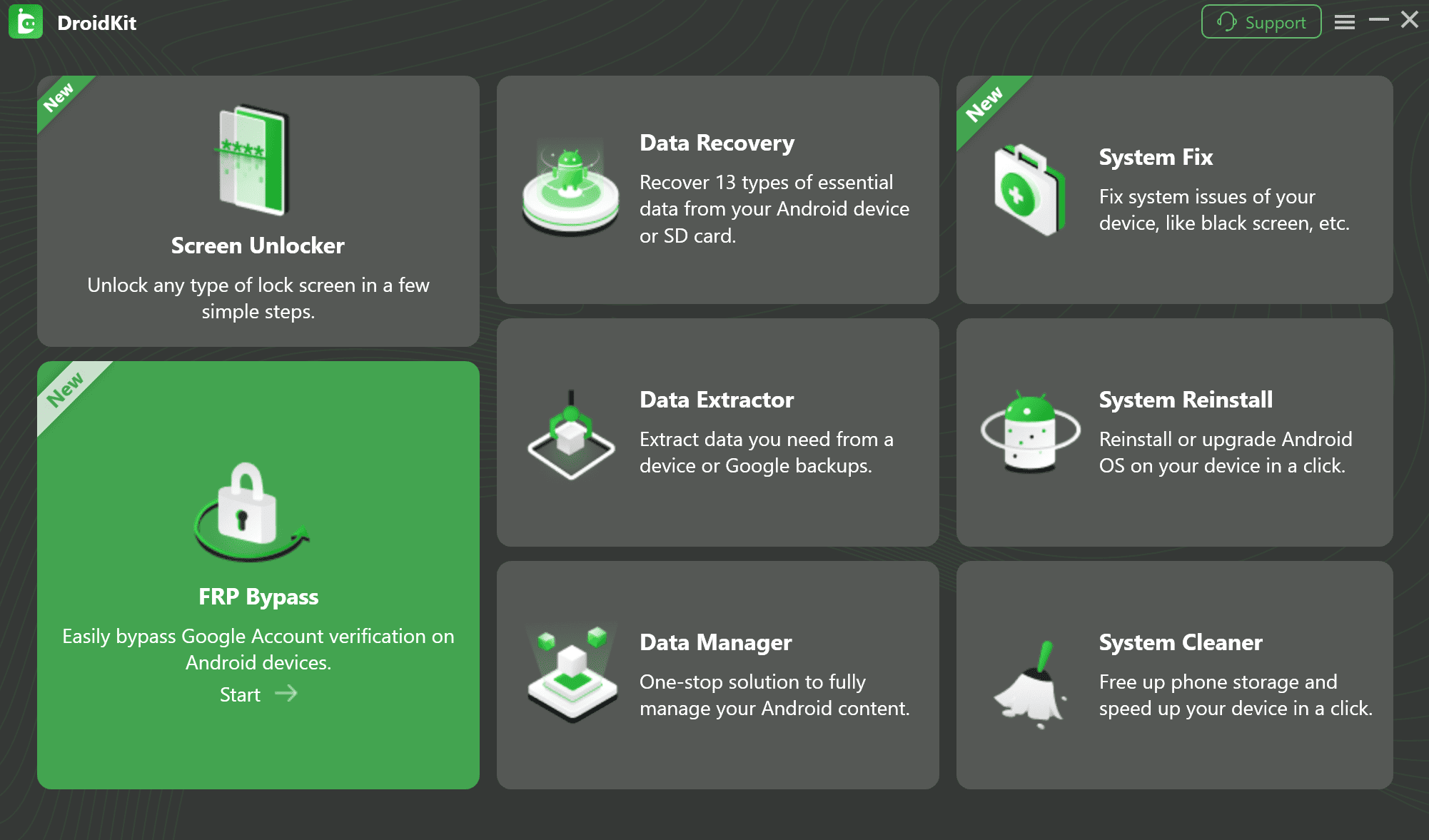
FRP Bypass Function in Mainmenu
3. The software will detect your device and prepare the correct files.
4. Follow the tailored, on-screen steps to put your phone into the right mode.
5. The tool will then run the bypass. Your phone will restart with the lock removed.
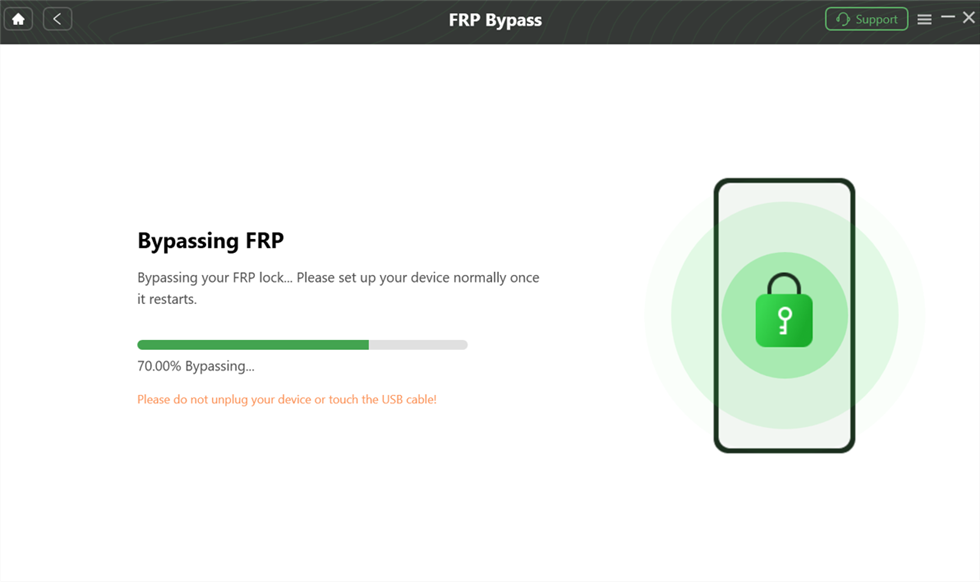
DroidKit is bypassing the FRP Lock
Disclaimer: DroidKit is a commercial product, presented here as a reliable alternative for users whose devices have been patched against free methods.
Frequently Asked Questions
How can I be sure if my Honor phone is MagicOS or EMUI?
Restart your phone. A modern, colorful “HONOR” logo means MagicOS. A screen showing “HONOR Powered by Android” means it is a legacy EMUI device.
Can Honor FRP bypass work without a PC?
Only in limited cases. Most no-PC methods are patched on newer devices.
Why isn’t the emergency call code or TalkBack method working?
These methods rely on software loopholes that Honor and Google have fixed in security updates.
Are there security risks with downloading FRP bypass tools?
Yes. To be safe, always download HiSuite from Huawei’s official site and source other tools from well-known developer communities like XDA.
Does Honor provide an official tool to remove an FRP lock?
No. The official method is to visit an authorized service center with proof of purchase.
Conclusion
Successfully bypassing the FRP lock on your Honor phone comes down to one thing: correctly identifying whether it runs MagicOS or EMUI.
To sum up:
- For MagicOS users, try the on-device methods first, but be prepared for them to fail on updated devices, making a professional tool your backup plan.
- For EMUI users, a PC-based tool is your most direct and reliable path to success.
For a consistent solution that works on all models and security levels, a dedicated tool is the most effective option. Download DroidKit to bypass the FRP lock and get your phone working again.
More Related Articles


Roger Smith is a senior technical writer with years of experience in providing Android solutions. He loves to help users solve various problems such as Android unlock, Android data recovery, and Android system repair.
Product-related questions? Contact Our Support Team to Get Quick Solution >
