How to Transfer Music from iPod to Computer
How do I transfer music from my old iPod to a new computer? Can I extract music from my iPod to my computer for free? If you also have such questions and don’t know how to do that, please keep reading. There are three different ways to help you transfer music from iPod to Windows 10/Mac computer.
Apple Product Issues & Tips
iPad Issues & Tips
iPod Issues & Tips
Mac Issues & Tips
AnyTrans – iPod Music Transfer
Free download AnyTrans to enrich your Apple life, transferring all music, etc. from iPhone/iPad/iPod to PC/Mac, and vice versa.

Although there were many MP3 players on the market before the iPod appeared, the iPod’s debut on the market has made it become an essential device for almost every music fanatic.
If you are also a member of iPod users, whether you are using iPod nano, iPod Classic, iPod Shuffle, iPod mini, or iPod touch, you may still store some of your favorite music albums on your device.
However, your old music may not be available in any other form, but you can transfer music from iPod to the computer. There are 3 different methods to show you how to transfer music from an old iPod, like iPod nano, iPod Classic, iPod Shuffle, iPod mini, and iPod touch to a computer.
How to Transfer Music from iPod to Computer without iTunes
This method works on both Windows PC and Mac.
Firstly, we’d like to introduce a professional and excellent iPod management tool for you. This software is named AnyTrans, which is an all-in-one manager and transfer for all iOS devices, including all iPod models. With AnyTrans, you can get music off iPod to the computer, iTunes library, another iPhone or iPad easily and quickly. Here are the main features of this tool:
AnyTrans – iPod Music Transfer
- Transfer both iPod music to the computer (PC & Windows).
- Add music to the iPod from the computer without wiping data.
- No harm to transferred music files and other iPod content.
- Work well with all iPod models, iPhones, iPad, and iOS 15 supported.
Free Download100% Clean & Safe
Free Download100% Clean & Safe
Free Download * 100% Clean & Safe
Wondering how to transfer music from iPod to computer windows 10 without iTunes? Follow the steps below:
Step 1. Free download AnyTrans and install the app on your computer > Launch it and connect your iPod to the computer. AnyTrans will detect your device automatically.
Step 2. Choose Device Manager on the homepage of AnyTrans > Click on the Music icon.
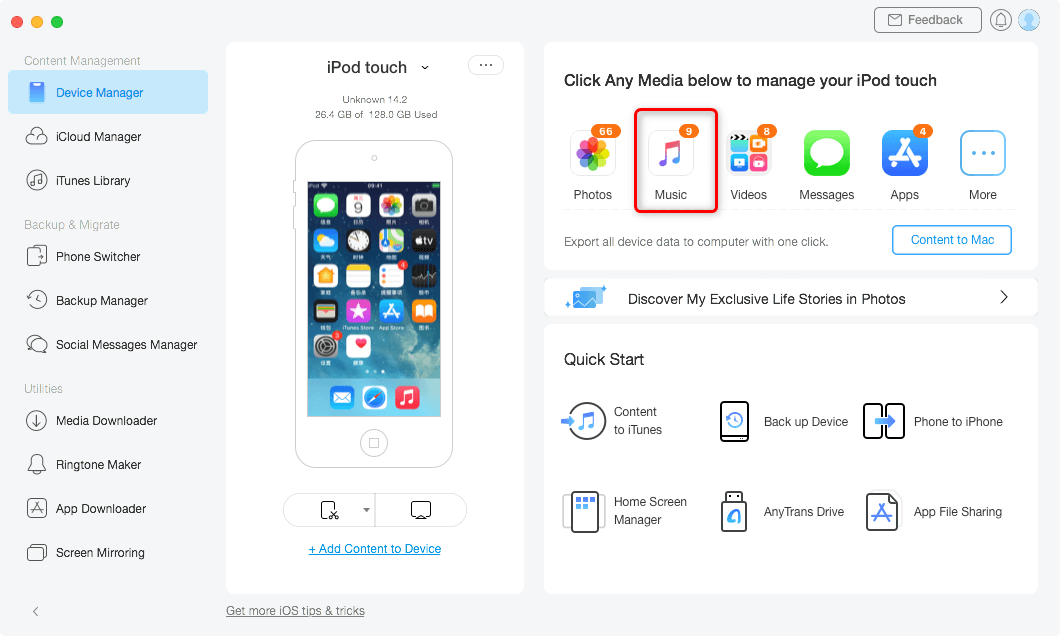
Choose Music in AnyTrans
Step 3. Tap “Songs” at the left panel and choose the music you want to extract from iPod > Click “To Mac”(here we take Mac computer for example, if you are using Windows computer, then click on the “To PC” icon).
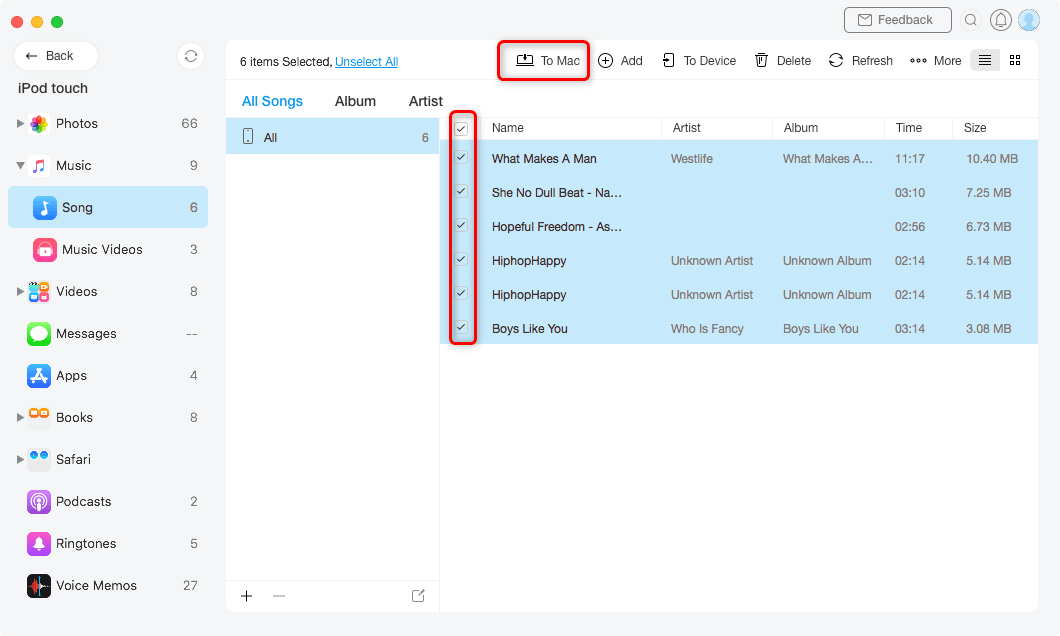
Choose iPod Music to Transfer to Mac
How to Transfer Music from old iPod to Computer Windows 10 Free
Step 1. Preparation for Transfer Songs from iPod to Windows 10
The first thing you need to do is to make sure that you have prevented iTunes on your Windows 10 PC/laptop from automatically syncing with your iPod. Since iTunes will erase the data on your iPod while syncing. Follow the guide below to prevent iTunes from automatically syncing:
- Open iTunes(do not connect any iOS device)> Go to Edit > Preferences.
- Then tap on the Devices icon > Click the Prevent iPods, iPhones, and iPad from syncing automatically box to select it.
- Choose OK and quit from iTunes.
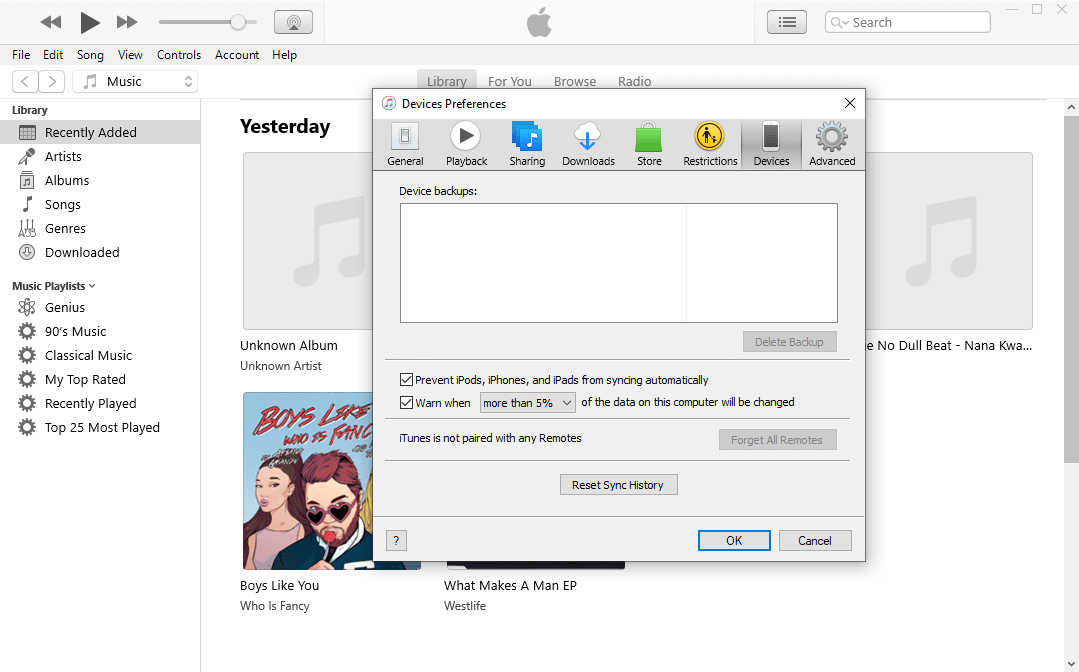
Prevent iPod from Syncing Automatically
Step 2. How to Get Music off iPod to Computer
- Connect your iPod to your computer (Windows PC/Laptop).
- Then you will see your iPod appears as a drive-in File Explorer > Open it and tap iPod_Control > Music folder.
- If the iPod drive comes up empty, you need to reveal the hidden folders and files on your computer.
- In the iPod_Control >Music folder, select all the folders, then copy and paste them to the hard drive (C/D/E). In this way, the music will move from the iPod to the computer.
How to Transfer Music from iPod to Computer Mac
Most people that want to transfer files from iPhone/iPod to their Mac computer will choose iTunes as the first choice. However, you need to prevent your iPod from syncing automatically in iTunes, before you transfer songs from your iPod to a Mac. You need to finish this step first so that iTunes won’t try to sync with your iPod and overwrite all the data on it.
Step 1. Connect the iPod to Mac and launch iTunes, at the same time, holding down both Options and Command buttons on your Mac computer.
Step 2. You can be able to access iPod files just like other files on a Mac.
Step 3. Then enable hidden files on your Mac to view iPod files. Open a terminal and run the following commands in it.
Step 4. Open the Finder and click on your iPod name in the left panel.
Step 5. Go to the iPod_Control and then open the Music folder. You can now copy the files you want from here to your Mac.
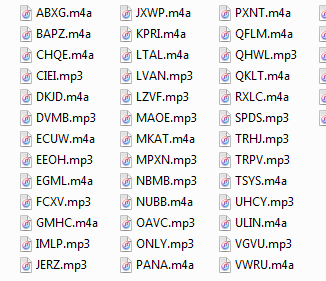
Access the iPod Music Folder
The Bottom Line
When your mouse stops here, you may know how you can transfer music from your old iPod to a new computer quickly. AnyTrans is also the best iTunes alternative to manage your iPod music as you like. Besides music, it also supports managing photos, videos, ringtones, voice memos, contacts, etc. on your iPhone/iPad/iPod. So, why not download it to have a try?
More Related Articles



Senior writer of the iMobie team as well as an Apple fan, love to help more users solve various types of iOS & Android-related issues.
Product-related questions? Contact Our Support Team to Get Quick Solution >
